How to export a GPX file from Strava, step by step
Strava exports a GPX file of your own activity from the website in three clicks, but not from the app. Here are the exact steps from Strava’s help centre, what changes for other people’s activities, how Garmin Connect and Komoot do it, and how a GPX file becomes a print with the route in 3D.
, 7 min read

To export a GPX file from Strava, open your activity on the Strava website, click the More menu (the three dots) and choose Export GPX. The file downloads straight away with a .gpx extension. That is the whole answer for your own activities, as long as you are on strava.com and not in the mobile app. The rest of this guide covers the details people get stuck on: the app, other athletes’ activities, exporting everything at once, Garmin Connect and Komoot, and what you can do with the file once you have it.
Export GPX from Strava: the steps
Strava’s help centre describes the export of a single activity like this (checked on 24/10/2026):
Sign in on strava.com and open the page of one of your activities.
Open the More menu, the icon with three dots.
Select Export GPX. The file downloads to your computer with the extension .gpx.
The same menu has Export Original, which downloads the file in the format you originally uploaded. If the activity came from a Garmin watch, that is usually a FIT file. Strava also notes two limits: an activity without GPS data, such as a treadmill run, gives an empty or unreadable file, and power appears in the GPX only when it came from a power meter. Strava explains it in its article on exporting your data.
Can you export a GPX from the Strava app?
No. Strava states that exporting your data is only available on the Strava website. On a phone, open strava.com in the browser, sign in and use the same menu on the activity page.
Can you download a GPX from Strava without a subscription?
For your own activities, Strava’s export article does not mention a subscription at all: Export GPX and Export Original sit in the activity menu. A subscription comes up only for other people’s activities, below.
Exporting someone else’s activity
Strava says that subscribers can download GPX files from other users’ activities, and that those files contain no time information. That is in its article on GPS files without time data. A separate article puts the GPX Download button at the top right corner of the activity’s map, says the file is stripped of performance data, and that an activity set to Only You can be exported only by the athlete who recorded it. Strava’s guide to downloading a route from another athlete’s activity.
Exporting all your activities at once
For your whole history, Strava has a bulk export: on the website, go to Settings, open the My Account tab, choose Get Started under Download your account, then Request download. Strava emails you a link, and it says this can take a few hours.
Export GPX from Garmin Connect
Strava’s help centre also describes the export from Garmin Connect (article dated 21/09/2026, checked on 24/10/2026):
On a computer, sign in to Garmin Connect.
Go to Activities in the left-hand toolbar.
Click the title of the activity to open its detail page.
Click the gear icon in the upper right corner and choose the format, for example GPX.
Choosing Export File gives you the watch’s original FIT file inside a ZIP archive, which you need to unzip first. Strava’s article on exporting from Garmin Connect. The article gives no steps for the Garmin Connect app, so plan on the website.
Export GPX from Komoot
Komoot’s help centre (updated 20/10/2026) says that planned routes and completed activities can be exported as GPX in the app or on the website: go to Profile, then Saved routes or Completed activities, select the route and choose Download GPX file. Two catches: the region where the route starts must be unlocked, and the file contains only the line itself, without the waypoints from planning. Komoot’s article on export and import.
What is actually inside a GPX file
GPX stands for GPS Exchange Format. Its author, TopoGrafix, describes it as a light-weight XML format for exchanging GPS data (waypoints, routes and tracks) between applications and web services. Version 1.1 was released in August 2004. Because the format exists to move GPS data between applications, a GPX from one app usually opens in another. The format’s home page at TopoGrafix.
The GPX 1.1 schema separates three kinds of data:
A waypoint is a single place, such as a hut, a spring or a car park.
A route is an ordered list of turn points leading to a destination: a plan, with the path in between worked out by the device.
A track is an ordered list of points describing a path: what your watch records during an activity, usually with elevation and time.
A track is split into segments, and the schema starts a new segment whenever reception was lost or the receiver was switched off. That is why a recording with a pause in the middle sometimes arrives in two pieces. The definitions are in the GPX 1.1 schema documentation.
GPX, TCX or FIT?
TCX (Training Center XML) is another text format, which Strava offers as an export of your own activities. FIT is the original file from a Garmin watch. For a map, an elevation profile or a print, any of them works as long as it holds coordinates and elevation.
From a GPX file to a print with the route in 3D
People search for a ‘Strava print’ because a ride or a run looks good as a line on a map. Our prints go one step further: the route is 3D-printed in matt PLA and glued to the glass above the printed map, and its height follows the elevation in your recording, from 4 mm at the lowest point to 15 mm at the highest by default. A climb you rode really does rise off the wall.

How it works in the configurator:
Upload a GPX, TCX or KML file, or drag it into the box.
Try the templates and colour themes on your own route, then choose the size and the frame.
Add the print to your basket. Adding it to the basket confirms that the design is correct.
The sizes are A5, A4 or A3, with a black or a white frame, and every print is made to order.
When you only have an activity link
You can also paste a link from Strava, Garmin, Komoot or Mapy.com in the configurator. We do not download the route from the link ourselves, but we show you how to download the file from the activity. For Strava, our export link works only for your own activity, and only in a browser where you are signed in to Strava. The details are on the page How to upload a route.
When the route does not load
Check that the file ends in .gpx, .tcx or .kml. If the recording has a break, upload it without the break or join the segments in the app.
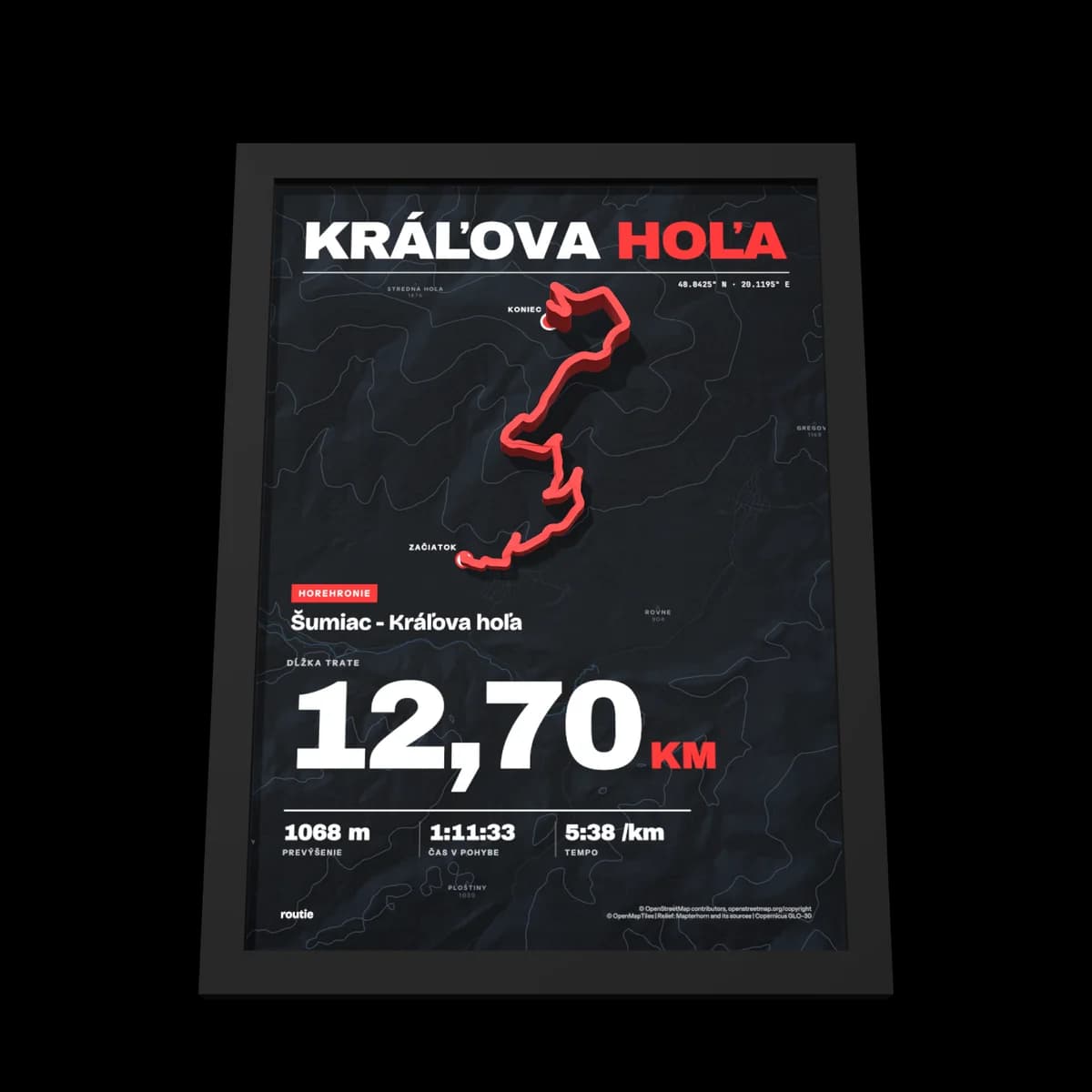
No recording? Start from a ready-made print
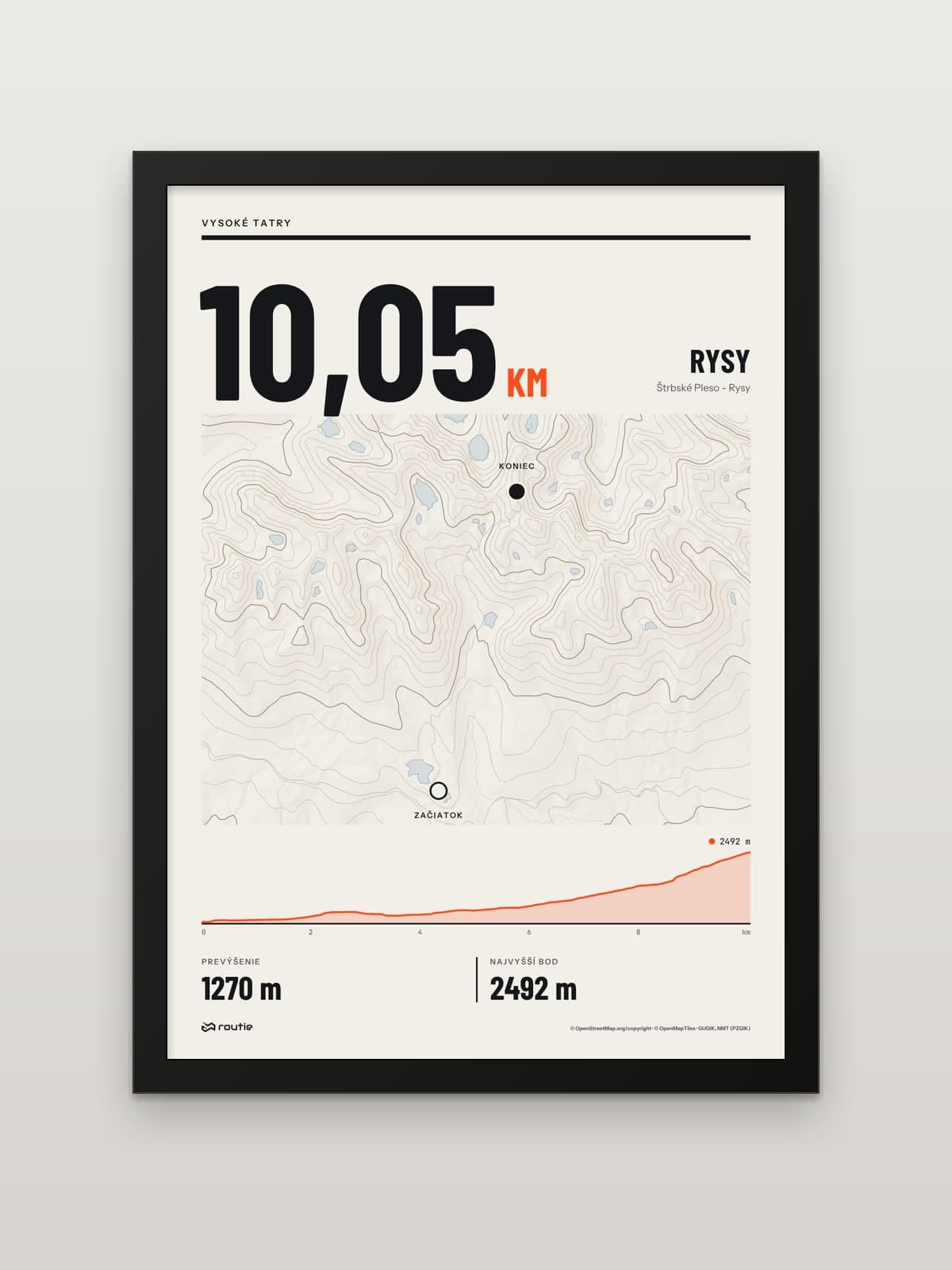
Not every great route has a file behind it. We have drawn some classics as ready-made prints, such as the High Tatras classic from Štrbské Pleso to the summit of Rysy:
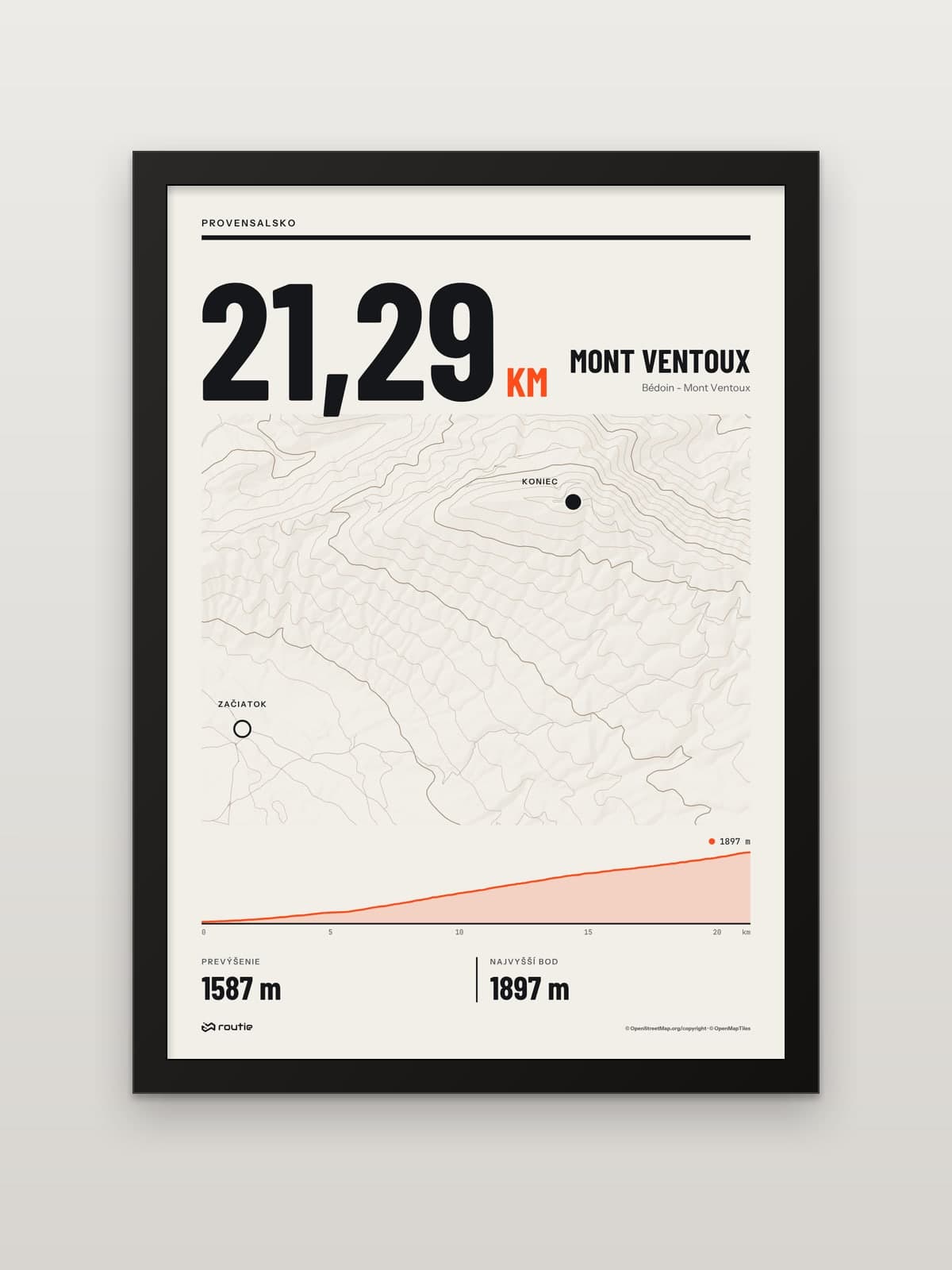
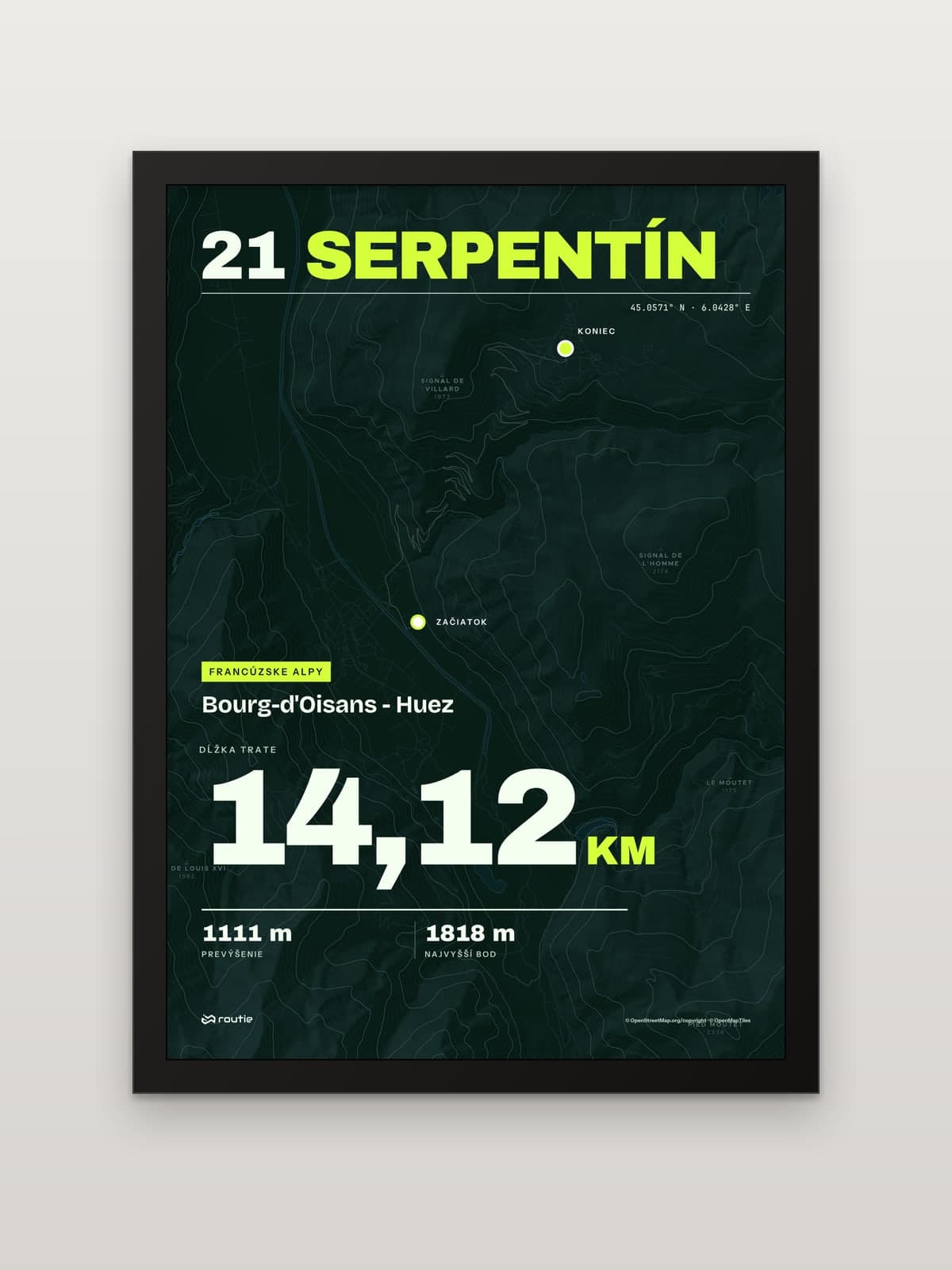
And two famous road climbs from France:
If the file is from a race, our guide to marathon finisher gifts shows what a finisher print can look like. Shopping for a rider? Read gifts for cyclists who have everything.
Frequently asked questions
Can you export a GPX from the Strava app?
No. Strava says exporting is only available on the website. Open strava.com in your phone’s browser and use the More menu on the activity page.
Can you download a GPX from Strava without a subscription?
Strava’s article on exporting your own activities does not mention a subscription. It mentions one only for downloading GPX files from other people’s activities.
Can you export someone else’s activity from Strava?
According to Strava, subscribers can download a GPX from other users’ activities, without time information and without performance data. Activities set to Only You can be exported only by their owner.
Which files can I upload for a print?
A GPX, TCX or KML file from your watch or app, or a link to an activity from Strava, Garmin and others, where we show you how to download the file.